Why families need a QA gate
Families are the most reused content in Revit. A problem in a family is copied into every project that loads it: a wrong category puts it in the wrong schedule, a missing parameter leaves a tag blank, a heavy imported CAD file slows every view it appears in. Fixing one family in the library is easy; fixing it in thirty live projects is not.
A QA gate is a short, consistent review a family passes before it is approved for the library. It does not need to be elaborate. It needs to be the same every time, and someone needs to own it.
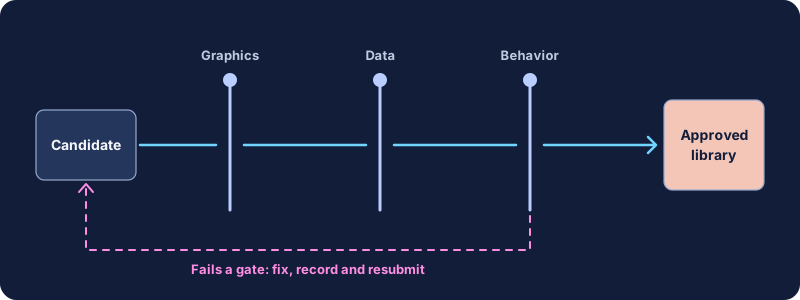
Before building or downloading
- Is it needed? Search the library first. Duplicate families with slightly different names are a common source of inconsistency.
- Is the source acceptable? For manufacturer or third-party content, confirm the license allows your intended use and check the content against your standards rather than assuming it is correct.
- Is the right template used? Families should start from the correct family template, so they inherit the right category and behavior.
- Is the target level of development clear? A generic placeholder and a product-specific family serve different stages. See LOD and LOI explained.
Identity and classification
- Correct category, and subcategories where your standard defines them.
- Family and type names follow the naming convention.
- Classification parameters, such as assembly code or your firm's classification field, are filled where required.
- Hosting behavior is appropriate: wall-, face-, floor- or non-hosted, chosen deliberately.
- Any IFC export settings your standard requires are present, so the element exports as the intended entity.
Geometry and references
- The insertion point is sensible and documented, typically using reference planes that define the origin.
- Key reference planes are named, and their reference strength is set so dimensions and alignment snap to the right faces.
- Geometry is constrained to reference planes, not to other geometry, so it flexes predictably.
- No imported or exploded CAD geometry inside the family unless your standard explicitly allows it.
- Voids, arrays and nested families are used only where needed, and nested families are themselves approved content.
- Geometry is no more detailed than the stated purpose requires.
Graphics and visibility
- Visibility settings by detail level are set: Coarse, Medium and Fine show appropriate geometry.
- Plan representation uses symbolic lines or masking where the 3D cut would be unreadable, and these follow the standard line styles or subcategories.
- Elements are on the correct subcategories so object styles and view templates control them.
- Materials are assigned by parameter where variation is expected, and use firm-standard materials.
- The family prints correctly at typical scales on a test sheet.
- Annotation families use firm text types and sizes.
Parameters and data
- Parameters that appear in schedules or tags are shared parameters from the firm's shared parameter file, not similarly named family parameters.
- Type and instance parameters are chosen deliberately. Values that vary per placement are instance; values that define a product are type.
- Parameter names, groups and units follow the standard. Tooltips or descriptions explain anything not obvious.
- Formulas work across the full range of expected values and do not produce errors at limits.
- Required data fields for the current stage are filled or deliberately left empty with a note.
- No leftover parameters from a source family that no longer drive anything.
Flex and behavior
Flexing means changing parameter values and checking that the family behaves. It is the single most revealing QA step.
- Create or test every type in the family.
- Change each dimension parameter to minimum, typical and maximum values.
- Check that geometry moves with reference planes and that nothing detaches or errors.
- Load the family into a test project and place it in its expected hosts.
- Check behavior in plan, section, elevation and 3D views, including how it cuts and how it appears when it is beyond the cut plane.
- Tag and schedule it, and confirm the expected values appear.
- For room-aware categories, confirm room association behaves as expected.
Performance
- File size is reasonable for the family's purpose. Compare with similar families in the library.
- Unused nested families, materials and parameters have been purged from the family.
- Complex geometry is limited to the detail levels that need it.
- Arrays, voids and many nested instances are tested in a project with many placements, not just one.
Performance problems are cumulative. One heavy family rarely matters; hundreds of placements of several heavy families do. The model health checks guide covers how to spot this at project level.
Documentation and approval
- Source, author role and creation date recorded.
- Version or revision noted, with a short change description.
- Reviewer and approval date recorded in the library register.
- A preview image or thumbnail that helps people choose it.
- Stored in the correct library location and classified.
Set up a family test project
Much of this checklist is faster with a dedicated test project, kept in the library alongside the families. It is a small Revit project built from your standard template, with a few prepared conditions:
- Walls of several standard types and thicknesses, including a curved wall, for testing hosted families.
- A floor, a ceiling and a roof, so face- and level-based behavior can be checked.
- Plan, reflected ceiling, section, elevation and 3D views at your typical scales, each with the firm's view templates applied.
- A sheet with these views placed, for print checks.
- Schedules and tags for the main categories, showing the shared parameters your standard requires.
- A room or space, for checking room association.
Loading a candidate family into this project and placing it in each condition takes minutes, and it reveals most problems in visibility, hosting, tagging and scheduling at once. Reset the test project from a clean copy regularly so earlier tests do not leave clutter behind.
Keep a short log for each family tested: date, reviewer, result and any issues found. Over time, the log shows which authors or sources need more support and which checks fail most often, which is useful evidence when you decide where to invest in better family templates or training.
Manufacturer and downloaded content
Families from manufacturers and content portals deserve the same gate as families built in-house, and sometimes a stricter one. They are often built to different standards: different parameter names, very detailed geometry, embedded materials or imported CAD. Common decisions include stripping unnecessary geometry, mapping product data to your shared parameters, and re-saving the family in your standard naming. Keep the original download separately so you can trace what changed, and check the license terms before redistributing modified content across offices.
Running QA without creating a bottleneck
The biggest risk with a QA gate is that it becomes a queue nobody can get through. A few practices keep it moving:
- Make the checklist public so authors check their own work before submitting.
- Split the review: a standards lead checks identity, graphics and data; a discipline expert checks whether the content is technically appropriate.
- Set a regular review slot rather than reviewing ad hoc.
- Allow a project-only state: a family can be used on one project while its library review is pending, clearly marked as not yet approved.
- Record common failures. If the same check fails repeatedly, improve the family templates or training rather than repeating the feedback.
The same idea for drafting details
Drafting views and detail components benefit from the same kind of gate: correct types, no imported leftovers, readable annotation and a recorded approval. Nova publishes a free draft Detail Library QA Checklist built around this approach for details moving from CAD into a Revit library. For broader library structure, see the detail library organization guide.
Quick checklist
- Needed, licensed and built from the right template.
- Correct category, subcategories, naming and classification.
- Defined origin, named and constrained reference planes.
- Detail-level visibility, symbolic graphics, standard materials.
- Shared parameters for scheduled data; formulas tested.
- Flexed across types and ranges; tested in a project.
- Reasonable file size; purged.
- Documented, reviewed and approved.